
Run a raid
A raid is one night where reserves and wins are recorded together. You walk three steps top to bottom on the raid’s card: load reserves, export to the in-game addon, import wins after the night. The whole thing is about three minutes of website work per raid, once it’s familiar.
The steps:
- Reserves — paste a softres.it link or CSV. One click loads them.
- Export for raid — copy the paste blob to your clipboard. Paste it in WoW.
- End of raid · Wins import — paste the addon’s end-of-raid export back. Points settle.
Each step has a numbered badge in the card. Locked until the previous one is done. Green once the action lands. The “Done” toggle at the top of the card appears only when all three are green.
Here’s what a finished raid looks like — three green checks, the Done pill in the header, the counters showing tracked reserves and wins:
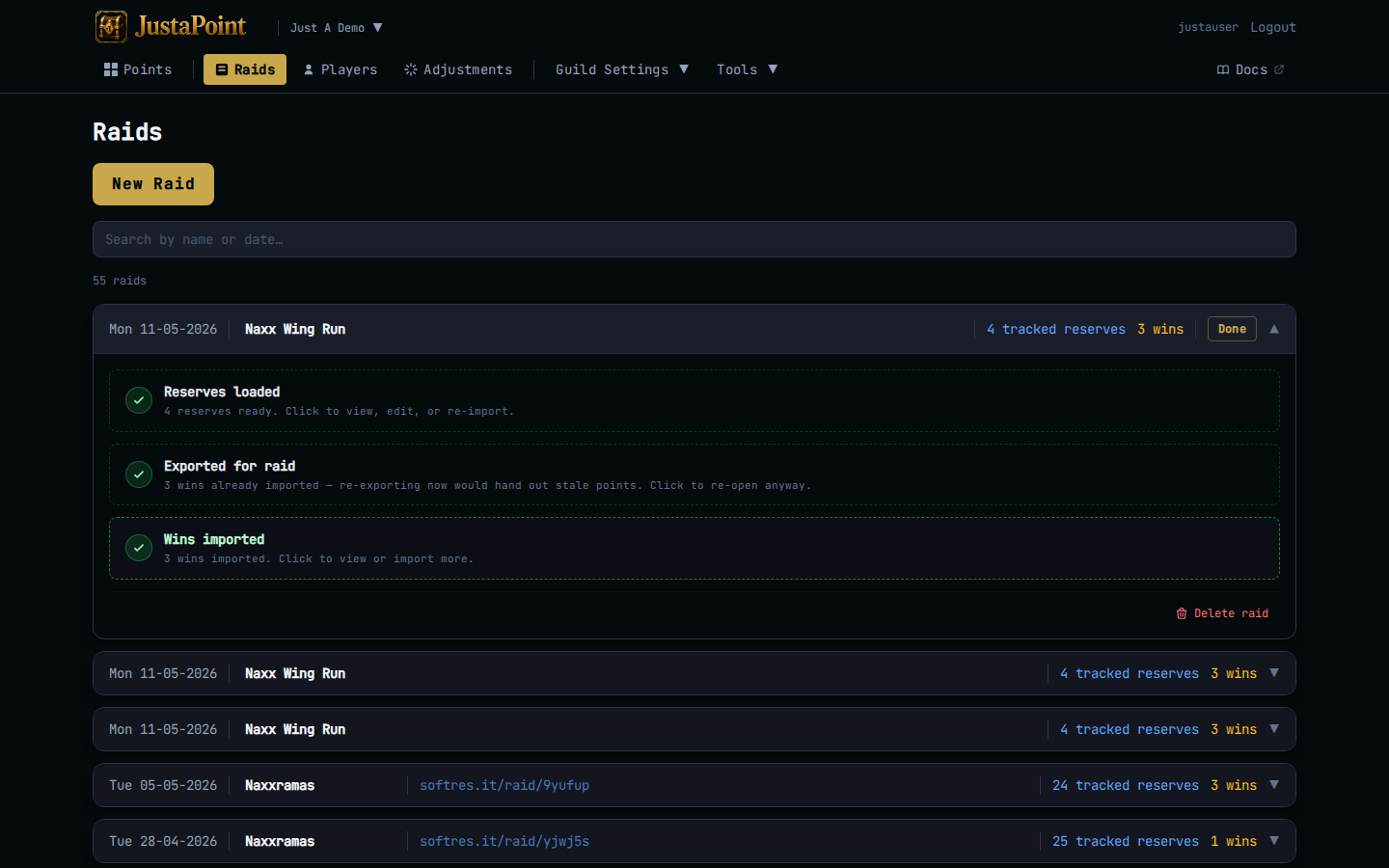
The rest of this page walks each step in order, with the screenshot of what you’ll see at each stage.
Before the raid
Step 1 · Reserves
Click New Raid. A blank card opens at the top of the list, in edit mode, ready to fill in. Type the raid name directly in the header — it auto-saves when you tab out.
In the Step 1 card, paste your softres.it/raid/<token> URL and click Load from SoftRes. The website hits softres.it, parses the reserves, fills in the raid date and instance name, and imports the reserved rows. The toast confirms “Loaded N reserves from SoftRes.” Badge goes green.
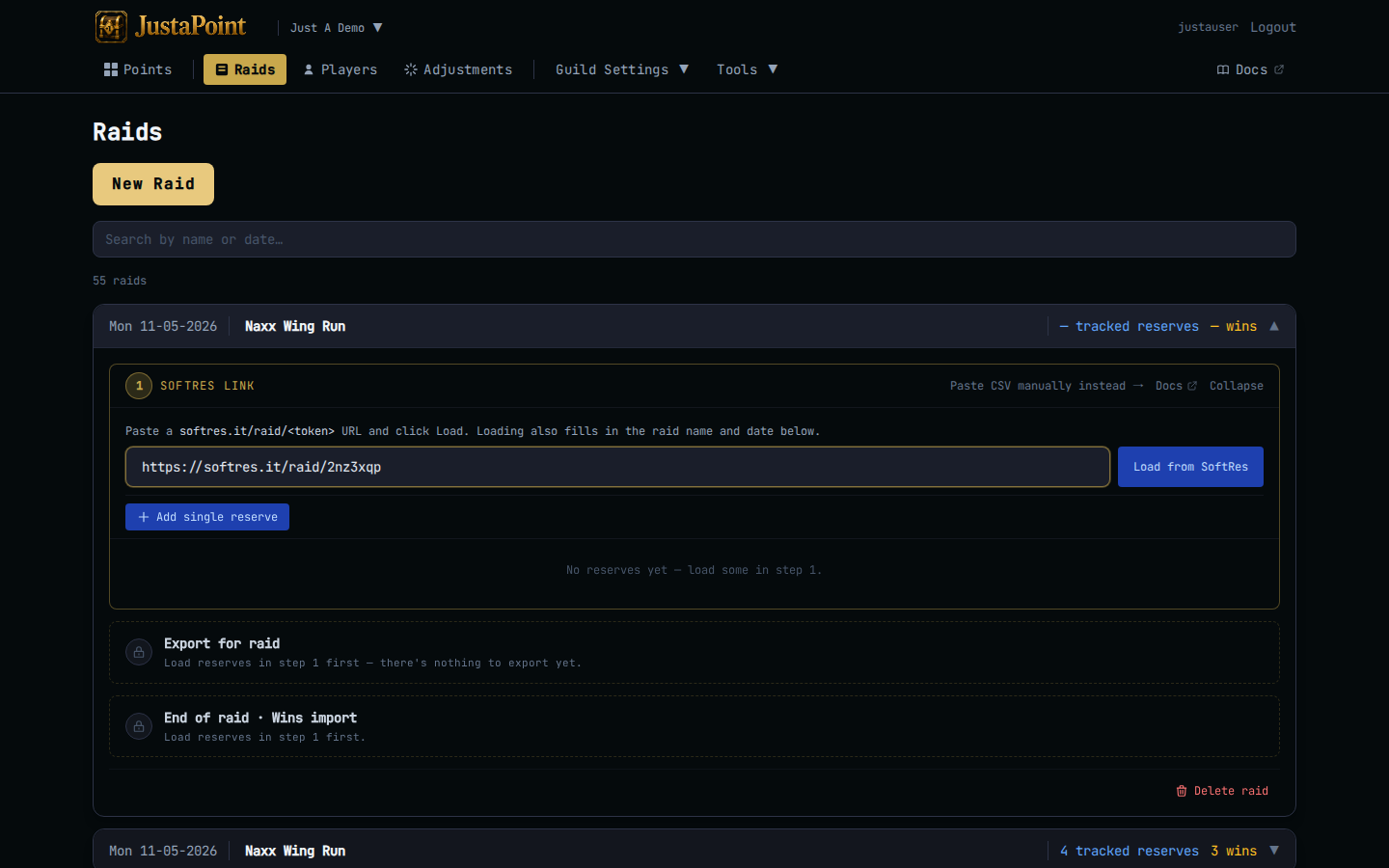
Don’t have a softres link? Click Paste CSV manually instead → in the card header to switch modes. Paste the SoftRes-shaped CSV (or anything matching the same column layout) into the textarea, click Import reserves.
The card collapses to a green badge once reserves are loaded. Click it again any time to re-expand.
Heads up: only reserves on tracked items earn points. Untracked items still get recorded as reserves but contribute zero to the player’s balance. See Tracked items for the first decision.
Step 2 · Export for raid
Once reserves are loaded, Step 2 unlocks and expands. Click JustAPoint Addon to copy the full paste blob (reserves + current standings + buff rules) to your clipboard. The blob is what your in-game addon reads to rank rolls live.
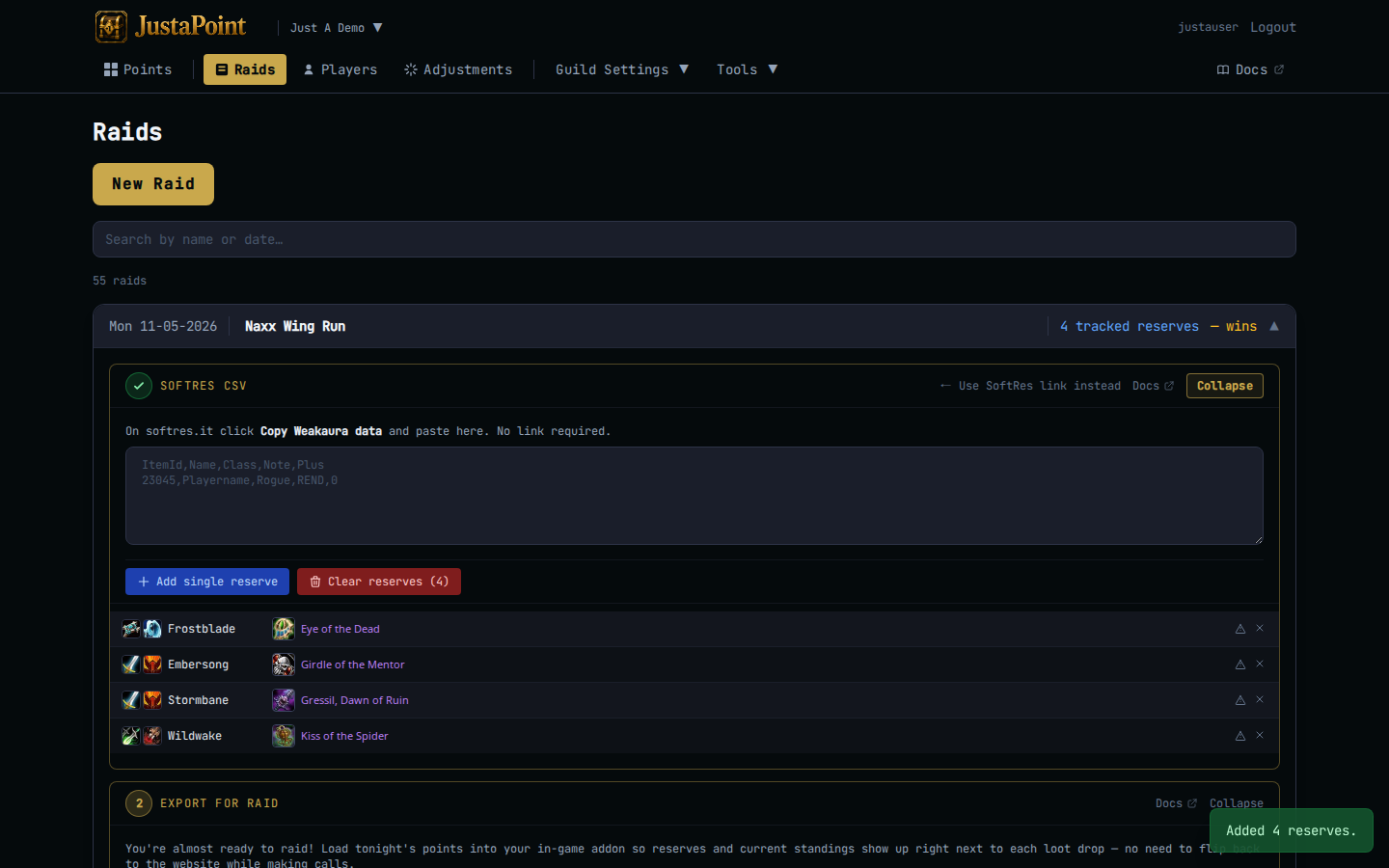
In WoW: type /jp import → paste → click Import. Addon chat confirms with player and reserve counts.
If your group still uses KRC instead of the JustAPoint addon, click KRC Addon to copy a points-only export in KRC’s TSV shape. Same idea, different addon.
Heads up: do Step 2 before Step 3. Importing wins recalculates everyone’s points, so re-exporting after the night hands stale numbers to the in-game addon. The card auto-collapses once any win is imported and gold-tints to remind you not to re-open it casually.
After the raid
Step 3 · End of raid · Wins import
Once the raid is dead and the addon has exported your wins, click End of raid · Wins import on the raid card. Paste the blob into the textarea — Gargul, SoftRes export, or the JustAPoint addon’s end-of-raid export are all detected automatically.
Click Import. Toast confirms “Added N wins.” The wins land as WIN events on the raid, and the points-on-that-item reset to zero for the winning player.
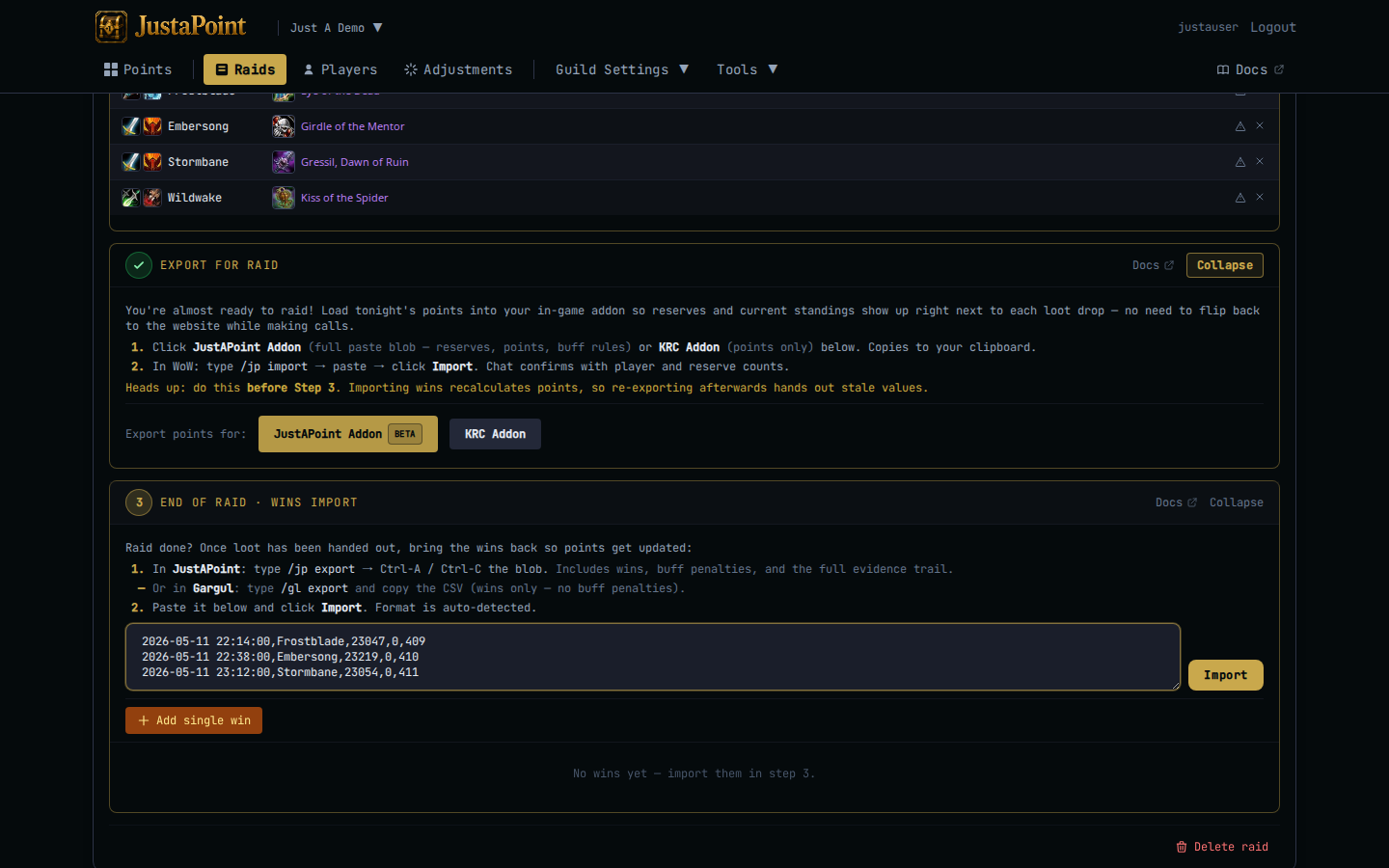
Heads up: the addon stamps each win with the date it was rolled. Wins whose date doesn’t match the raid’s date are silently discarded — that’s the system catching the most common slip, importing last week’s blob into this week’s raid. If you see “Added 0 wins” check the date in the raid header matches what’s in the export.
Done
When all three steps are green, click Done in the card header. The form view collapses to a read-only Reserves / Wins tab pair — the night’s results, scrollable, with one row per event. Click Edit to flip back to the steps view if you need to re-import or fix something.
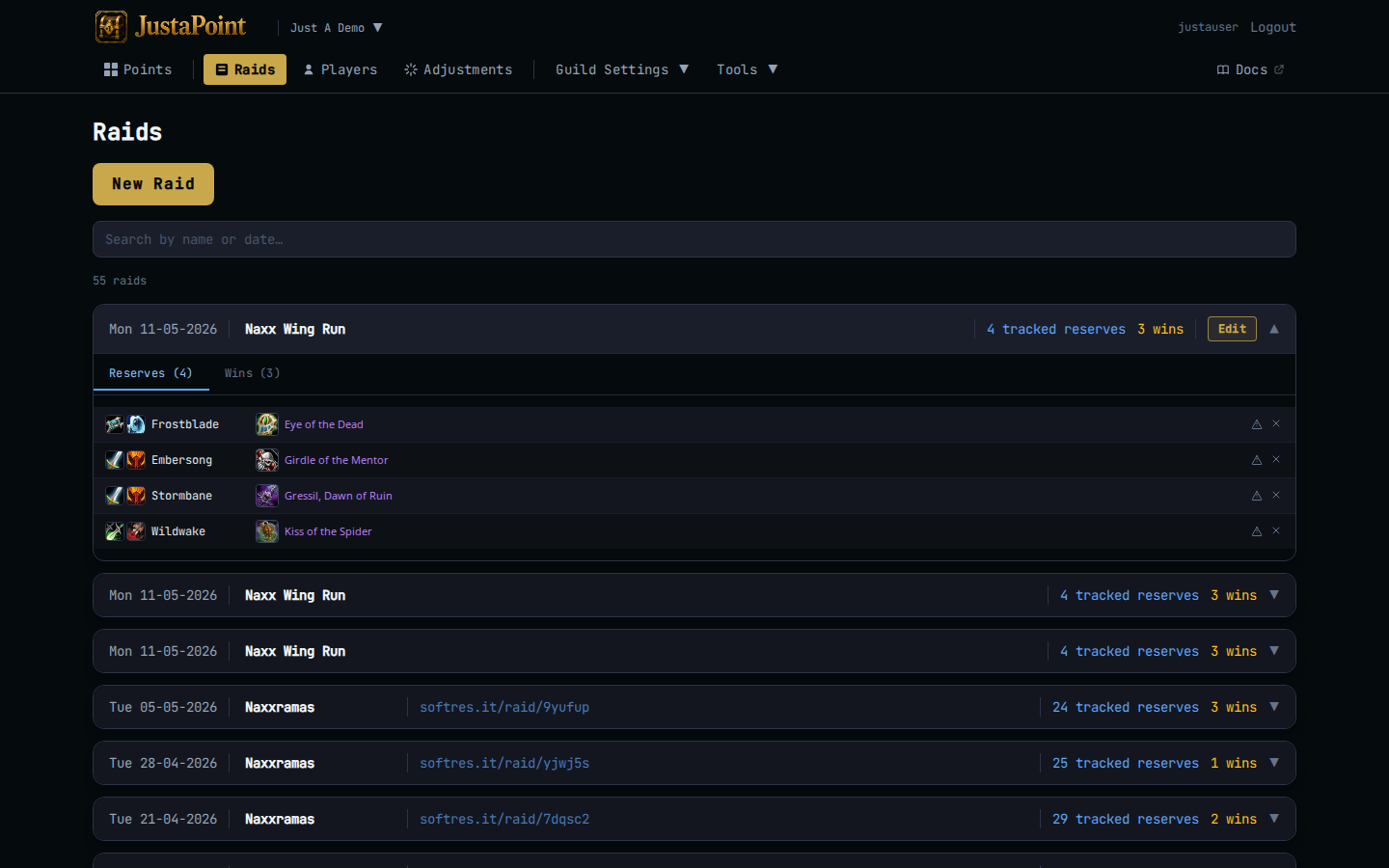
Points update everywhere immediately. The public points page, every raider’s history popup, the next raid’s export blob — all consume the same /api/g/<slug>/points and reflect the new state.
Common situations
You messed up a reserve. Open the raid in edit mode, expand Step 1, hover the offending row in the embedded reserves list, click the × to delete it. Re-export Step 2 only if you haven’t imported wins yet.
You imported the wrong wins. Open the raid in edit mode, expand Step 3, click Clear wins at the top of the wins list. Then re-paste the correct blob.
A raider was missing from the softres but showed up. Add them by hand: expand Step 1, drop into manual paste mode, append a row with their name and the item. Re-import.
The raid actually happened on a different night. Click the date in the card header — it’s an inline editor. Change the date, tab out. Wins whose date doesn’t match will be re-evaluated on the next import.
If something more complex went wrong, Adjustments is the escape hatch for nudging a player’s points up or down without faking a reserve.